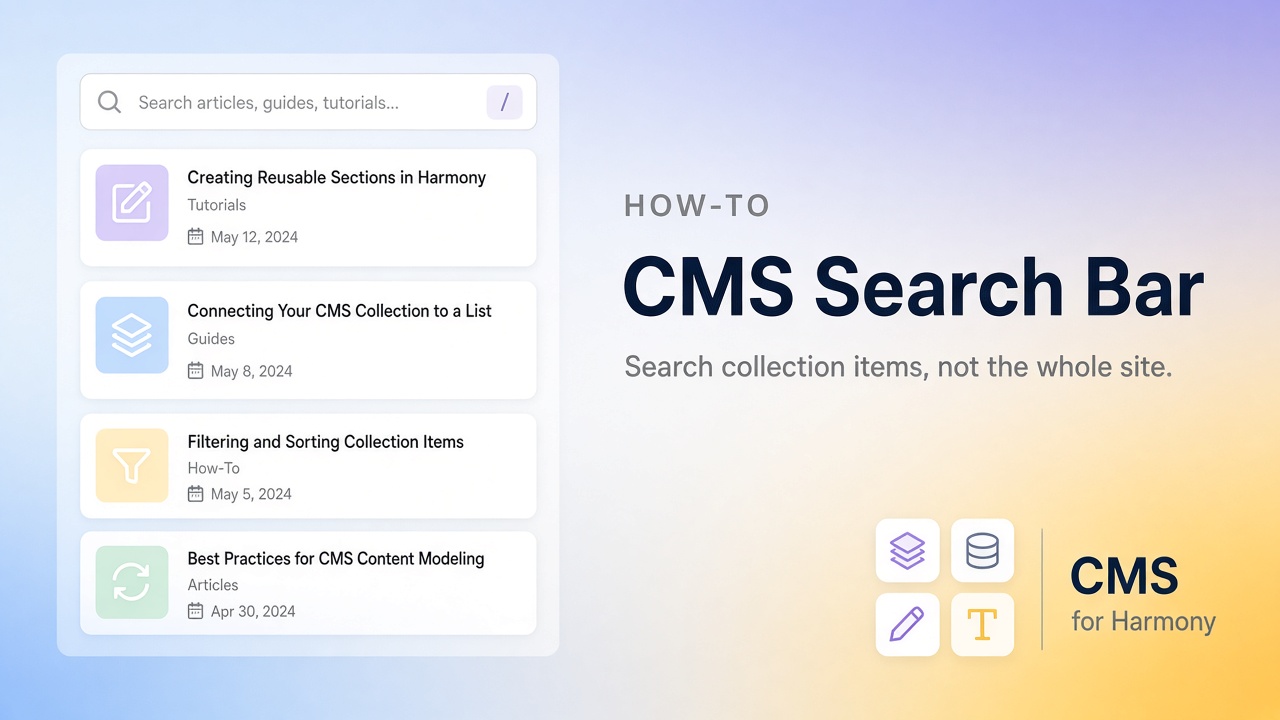
A CMS search bar lets someone type a few letters and watch a list shrink—find “Maria” in a staff directory, “Austin” in a listings page, or “brochure” in a resource library. That is different from site search, which looks for pages across the whole website.
This guide covers both the native path (mainly Studio / Editor) and the no-code widget path with CMS for Harmony, which works on Editor, Studio, and Harmony.
See also the Wix CMS Guide.
Site search vs CMS search
| Site search | CMS search | |
|---|---|---|
| Looks through | Pages and site content | Items in a collection display |
| Typical UI | Site-wide search box | Search field above a Repeater, Table, or gallery |
| Use when | Visitors hunt for pages | Visitors hunt inside a directory or catalog |
If your problem is “help people browse 80 team members,” you want CMS search.
Native options (Studio and Editor)
On Studio (and many Editor CMS setups), you connect a Repeater to a dataset, then attach input elements so visitors can filter. Dropdowns and similar controls for category-style fields are a well-documented no-code path in Wix’s CMS help.
A live keyword search box—type and filter as you go—usually needs a small amount of Velo (filter the dataset with something like contains on a plain text field). Rich text fields are a poor match for that kind of search.
If you don’t want to maintain code, an app widget with a built-in search bar is often faster.
Harmony
Harmony’s built-in CMS can show connected lists, but it does not give you the same visitor search chrome on one list that Studio builders expect. Common workarounds: separate lists for each category, or install CMS for Harmony and turn on Show search bar. More context: Harmony CMS limitations.
CMS for Harmony (all three editors)
- Install CMS for Harmony.
- Add a Table, Repeater, Calendar, Media Gallery, or Slideshow and connect a collection.
- Open Search & filters and enable Show search bar.
- Publish, then test as a visitor with a name or word you know exists.
Search looks at the text-like fields mapped for that widget (for example, Calendar uses Title and Details). Exact behavior: Search & filters docs.
Side-by-side
| Native Harmony | CMS for Harmony | |
|---|---|---|
| Visitor keyword search on one list | Not available the same way today | Toggle Show search bar |
| Editors | Harmony | Editor, Studio, Harmony |
| Binding model | Native Repeater fields | App widgets only |
A simple example
Collection: Directory (Name, Role, City, Bio)
Display: Repeater cards
Goal: Typing “Austin” or a person’s name filters the cards
Turn on search. When you’re ready for Role or City buttons, add category filters.