Dynamic pages give each collection item its own URL. Recommended: create them as native Wix dynamic pages. Alternative: use the app Dynamic Page Site Page at /item when native collection pages fail on your site.
Create a native Wix dynamic page (recommended)
- Open the collection.
- Choose More actions → Add collection page.
- Wix adds a native dynamic page. Note its path — the part before the item slug (for example
fruitsin/fruits/apple).
Wix stores each item’s slug in Item slug.
To show the item with the Dynamic Page widget, or to open it from another widget:
- Add the Dynamic Page widget to that native page: Add → Elements → Installed Apps → CMS for Harmony.
- Connect the same collection.
- Set Page path to the native page path (
fruits). Do not include a leading slash. - Set Page link field to Item slug.
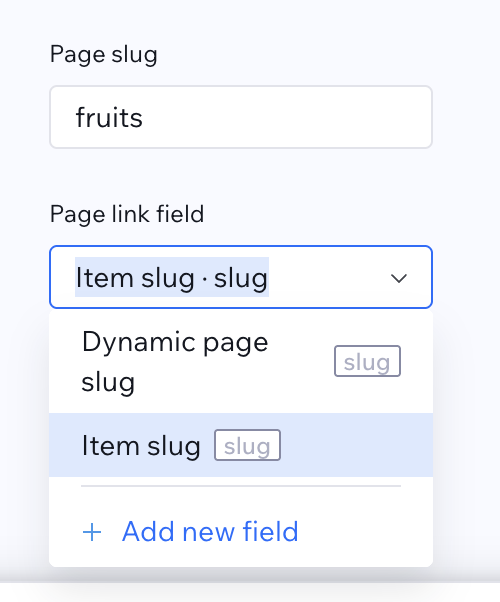
Use the same Page path and Page link field on the Dynamic Page widget and on every widget that links to that page. Each collection gets its own collection page. Panel walkthrough: Connect to a native Wix dynamic page.
Native collection pages can use custom paths and can be added to the sitemap.
Alternative: /item Site Page
Use this when Add collection page fails or native dynamic pages error on your site.
- In the CMS for Harmony dashboard, open CMS Collections.
- On the collection menu, choose Set up /item item page (adds the Dynamic page slug field and URL plugins).
- In the Harmony editor, add Dynamic Page from Add → Elements → Installed Apps → CMS for Harmony onto the app Site Page (first install uses
/item; another collection needs a second page —/item-1,/item-2, … — by adding Dynamic Page again from Installed Apps). - On the Dynamic Page widget and on linked Repeater, Table, Slideshow, Media Gallery, and Calendar widgets, set Page path to that page prefix (
item,item-1, …) and Page link field to Dynamic page slug.
Downsides: the URL prefix is fixed (item, item-1, …) and cannot be changed. You can add the /item page itself to the sitemap, but individual item URLs (for example /item/apple) are not listed automatically the way native collection item pages are.
An /item page already on the site from an earlier app version keeps working with the same settings.
Full walkthrough: How to set up Dynamic Pages.
Tips
- Prefer stable item titles so slugs stay readable.
- Map SEO fields on the Dynamic Page if you want search and social previews per item.
- See Dynamic Page for layouts and per-item SEO.