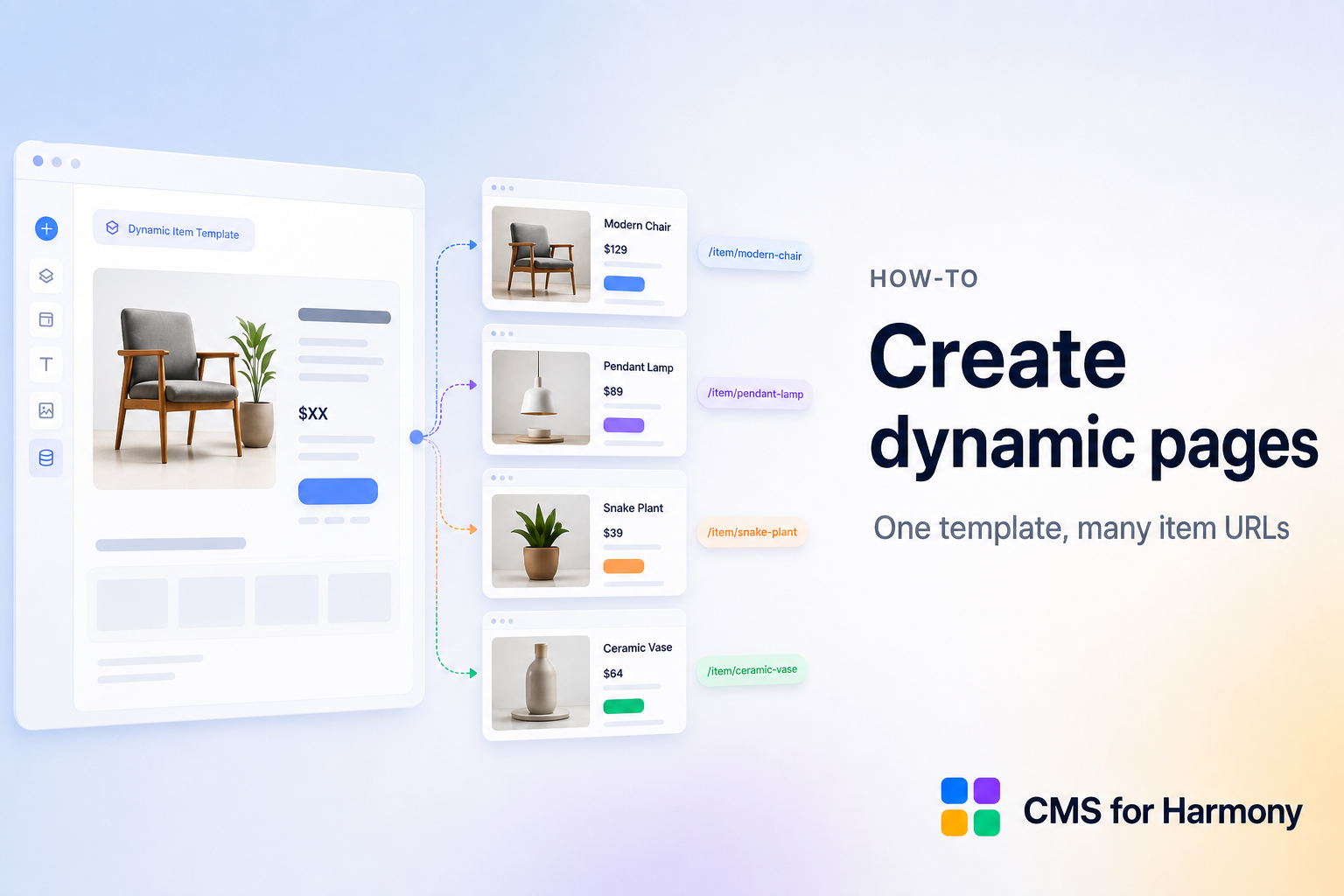
CMS for Harmony’s Dynamic Page shows one collection item per URL (for example /fruits/apple). Recommended: create that page with More actions → Add collection page, then place the widget on it. Alternative: use the app /item Site Page when native pages fail. See Dynamic pages.
What you need
- CMS for Harmony installed on your site
- A collection with a few items
1. Add a native collection page
- Install CMS for Harmony from the App Market if it is not installed yet.
- Open the CMS for Harmony dashboard and create a collection (Team, Listings, Projects, …) with the fields you need.
- Add a few items so URLs and previews have real data.
- Open the collection and choose More actions → Add collection page.
- Wix adds a native dynamic page. Note its path — the part before the item slug. A Fruits collection might use
fruitsfor URLs like/fruits/apple.
Wix stores each item’s slug in Item slug.
The page is a template
That collection page is one shared template: the same layout and Dynamic Page widget serve every item URL under that path.
- You design the page once (fields, layout, SEO mapping).
- When a visitor opens
/fruits/apple, the widget reads the URL, finds the Apple item, and fills the template. - When someone opens
/fruits/pear, the same page and widget load again — only the content changes.
So you are not building dozens of pages by hand. One template + many item URLs.
2. Configure the Dynamic Page widget
On the native collection page:
- Add Dynamic Page from Add → Elements → Installed Apps → CMS for Harmony.
- Select the widget and open its settings.
- Connect the collection.
- Choose a layout: Hero, Split, Stack, Minimal, or custom HTML/CSS.
- Select which fields visitors see (text, images, video, Address, Color, references, and so on).
- Under Dynamic page in the panel, set:
- Page path to the native page path (
fruitsfor/fruits/apple). Do not include a leading slash. - Page link field to Item slug
- Page path to the native page path (
- Optionally pick a Preview item for the editor (live pages use the URL).
- Map per-item SEO (title, description, share image) from collection fields when you want search and social previews per URL.
In the editor, Preview item lets you check how the template looks for different items without leaving the canvas. On the live site, the URL always chooses which item appears.
Full widget reference: Dynamic Page.
3. Publish and test
- Publish the site.
- Open a few item URLs (for example
/fruits/appleand/fruits/pear) and confirm the same template shows different content, layout, and SEO tags for each.
4. Another collection
Each collection gets its own native dynamic page:
- Open that collection and choose More actions → Add collection page.
- Add Dynamic Page, connect the collection, and set Page path to that page’s path.
- Configure layout, fields, and SEO as above.
5. Link Repeater and other displays
Visitors can open an item page from your listing widgets. On Repeater, Table, Slideshow, Media Gallery, or Calendar:
- Connect the same collection as the Dynamic Page.
- Open Dynamic page in that widget’s panel.
- Turn on Link to item page.
- Choose how the link works for that widget (for example whole card / row, button, or image — options vary by widget).
- Set Page path to the same native page path (
fruits). - Set Page link field to Item slug.
- Choose open in the same tab or a new tab (applies on the live site).
A click then goes to that item’s URL — for example from a Repeater card to /fruits/apple, where the Dynamic Page fills in that item’s fields.
Editor note: links may stay sandboxed inside the widget in the editor; they open normally on the live site.
Alternative: /item Site Page
If Add collection page fails on your site:
- Open CMS Collections → Set up /item item page on the collection.
- In the editor, add Dynamic Page to the app Site Page (
/item, or/item-1,/item-2, … for another collection). - Set Page path to
item(oritem-1, …) and Page link field to Dynamic page slug on the Dynamic Page and linked widgets.
The URL prefix is fixed and cannot be changed. You can add the /item page to the sitemap, but individual item URLs are not listed automatically like native collection pages.
Pages already on your site
An /item page from an earlier app version keeps working with Page path item (or item-1, …) and Dynamic page slug.
Tips
- Prefer stable item titles so slugs stay readable.
- Keep Page path and Page link field the same on the Dynamic Page and on every linked display.
- On Pro, you can Enable payments and show Add to cart / Buy now on the Dynamic Page.