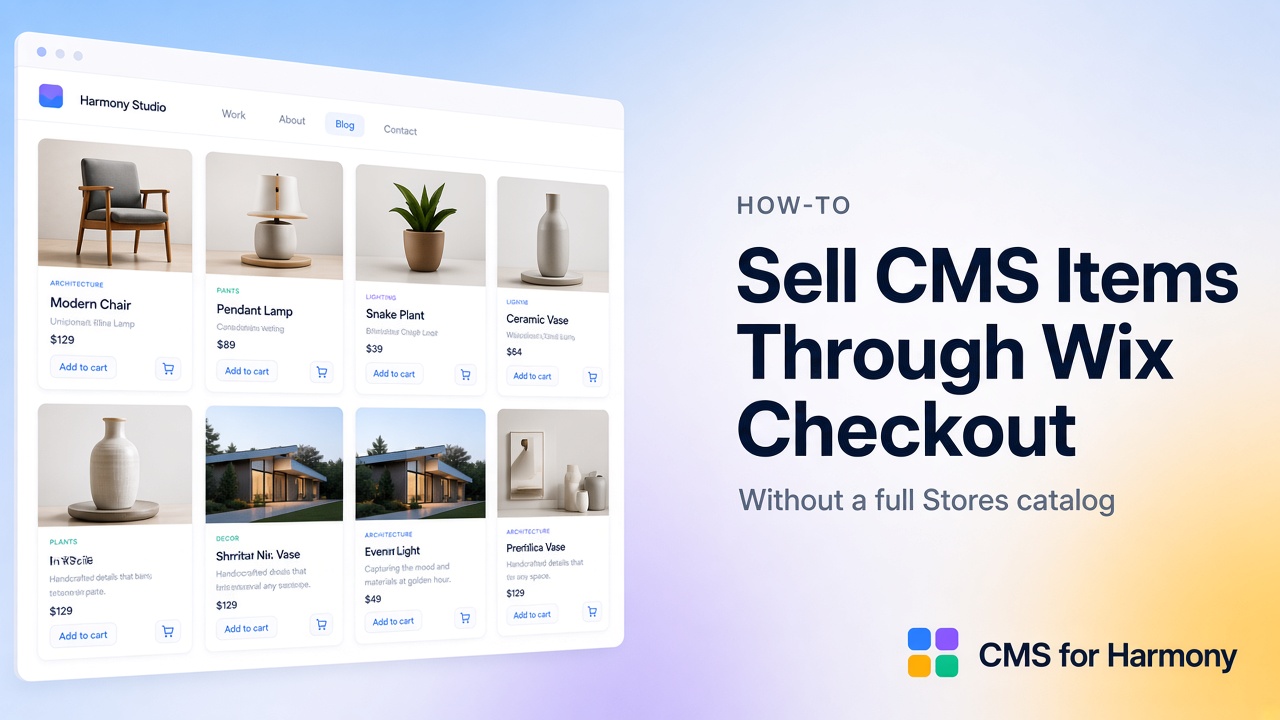
You can sell CMS items through Wix Checkout without managing a full Wix Stores product catalog by using CMS for Harmony Pro catalog payments. Enable payments on a collection (Name + Price required), then show Add to cart and/or Buy now on Repeater, Table, Dynamic Page, Media Gallery, and Slideshow. Items stay in your CMS collection; checkout uses the site’s Wix cart. This is separate from Form pay-on-submit. Payment CTAs work on the live site only—not Editor preview.
Catalog payments vs Wix Stores vs Form pay-on-submit
| Approach | What you sell | Checkout |
|---|---|---|
| Catalog payments (this guide) | CMS collection rows with Name/Price mapping | Wix cart / Checkout via Add to cart or Buy now |
| Wix Stores | Full Stores catalog, inventory, Stores apps | Native Stores commerce stack |
| Form pay-on-submit | Fixed or visitor-entered amount on form submit | Wix Checkout after submission is saved |
Use catalog payments for CMS-driven catalogs and listings. Use Stores when you need full ecommerce catalog features. Use Form payments for donations, fees, or application payments—not line-item Add to cart on displays. Guide: How to create a paid form in Wix Harmony.
Requirements
- Pro plan
- Collection with at least Name and Price (number) fields
- Supported widgets: Repeater, Table, Dynamic Page, Media Gallery (lightbox), Slideshow (per slide)
- Not on Calendar; Form uses separate pay-on-submit
- Test on the live site
Step 1 — Model the collection
Create fields for Name, Price, and optionally Description, Image, and Quantity. Add items you want to sell. Optionally Dynamic pages if each product needs its own URL via Dynamic Page.
Step 2 — Enable payments on the collection
In the CMS for Harmony dashboard:
- Open the collection’s ⋯ menu → Enable payments.
- Map Name field and Price field (required). Optionally map Description, Image, and Quantity.
- Use + Create new field… if you need a field without leaving the modal.
- Save. The collection shows a Payments badge. Later: Edit catalog or Remove catalog from the same menu.
Step 3 — Show Add to cart / Buy now on displays
- Connect the payment-enabled collection to Repeater, Table, Dynamic Page, Media Gallery, or Slideshow.
- Open Payments in the widget panel.
- Turn on Show payment actions.
- Choose Add to cart, Buy now, or both; set labels and styling.
- For Add to cart, set After add to cart: Nothing, Open side cart, or Go to cart page.
- Publish and test on the live site.
Buy now adds the item and redirects to Wix Checkout. Add to cart uses the current cart (and optional side cart / cart page).
Quantity and after-add behavior
- Map a Quantity field when you enable payments if visitors should choose quantity from CMS-backed stock/limits as configured in the panel.
- Prefer Open side cart or Go to cart page when you want a clear post-add path; use Nothing for quieter add flows.
Related: Form pay-on-submit (separate)
Form Enable payments (Pro) saves the submission, opens Wix Checkout for a fixed or visitor-entered amount, then writes Order ID / Total paid / Payment status back to the submission. It is not Add to cart / Buy now on catalog items. See Form.
Limitations vs full Wix Stores
- Catalog is your CMS collection with field mapping—not the Stores product catalog UI.
- No claim that CMS for Harmony replaces inventory, Shipping rules UI, or every Stores app feature.
- Calendar has no catalog payment CTAs.
- Google Sheets external databases cannot use catalog payments.
- Without Pro, payment toggles stay off with an upgrade prompt.
- App widgets only—no native Text/Image/Button commerce binding.
Plan requirements
| Feature | Plan |
|---|---|
| Enable payments + Add to cart / Buy now | Pro |
| Form pay-on-submit | Pro |
| Live-site checkout testing | Required (preview does not run payment CTAs) |
FAQ
Can I sell CMS items on Wix without Wix Stores products?
Yes—with CMS for Harmony Pro catalog payments, items stay in a CMS collection and checkout uses Wix cart/Checkout.
Which widgets show Add to cart and Buy now?
Repeater, Table, Dynamic Page, Media Gallery, and Slideshow.
Do payments work in the Editor preview?
No. Test Add to cart / Buy now on the live site.
Is Form pay-on-submit the same as catalog payments?
No. Form charges on submit; catalog payments sell collection items from displays.