CMS for Harmony 小工具位於編輯器的 Installed Apps。你可以在同一頁面(或跨頁面)放置同一個小工具多次 — 每個實例有各自的設定。
開始前: 先在網站安裝 CMS for Harmony。若尚未建立集合,請參閱 開始使用。
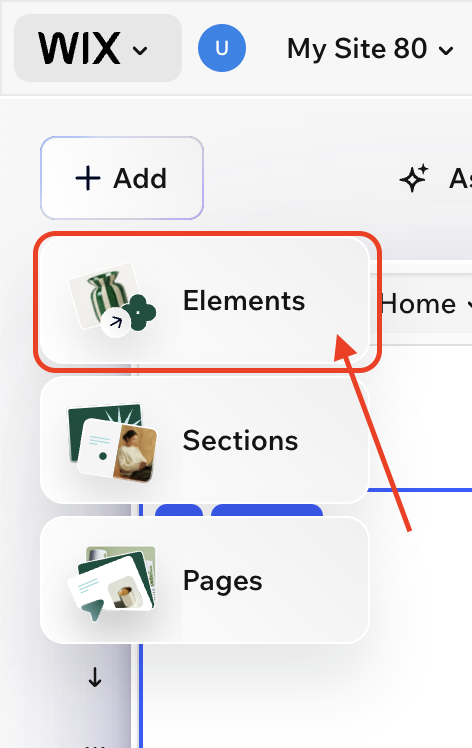
1. 開啟 Elements
- 在 Wix 編輯器開啟網站(Harmony、Studio 或 Classic)。
- 點擊 + Add。
- 選擇 Elements。
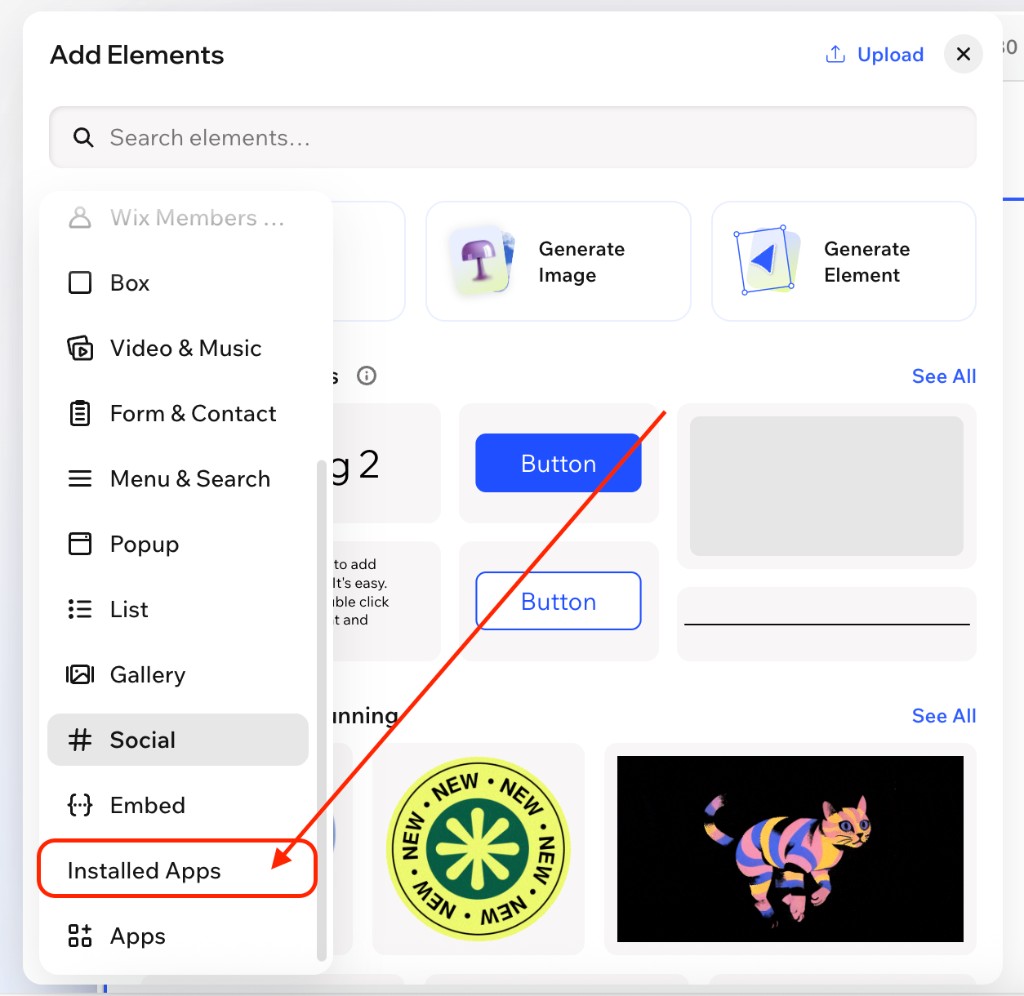
2. 開啟 Installed Apps
在 Add Elements 面板左側邊欄開啟 Installed Apps(必要時往下捲 — 通常在列表偏下方)。
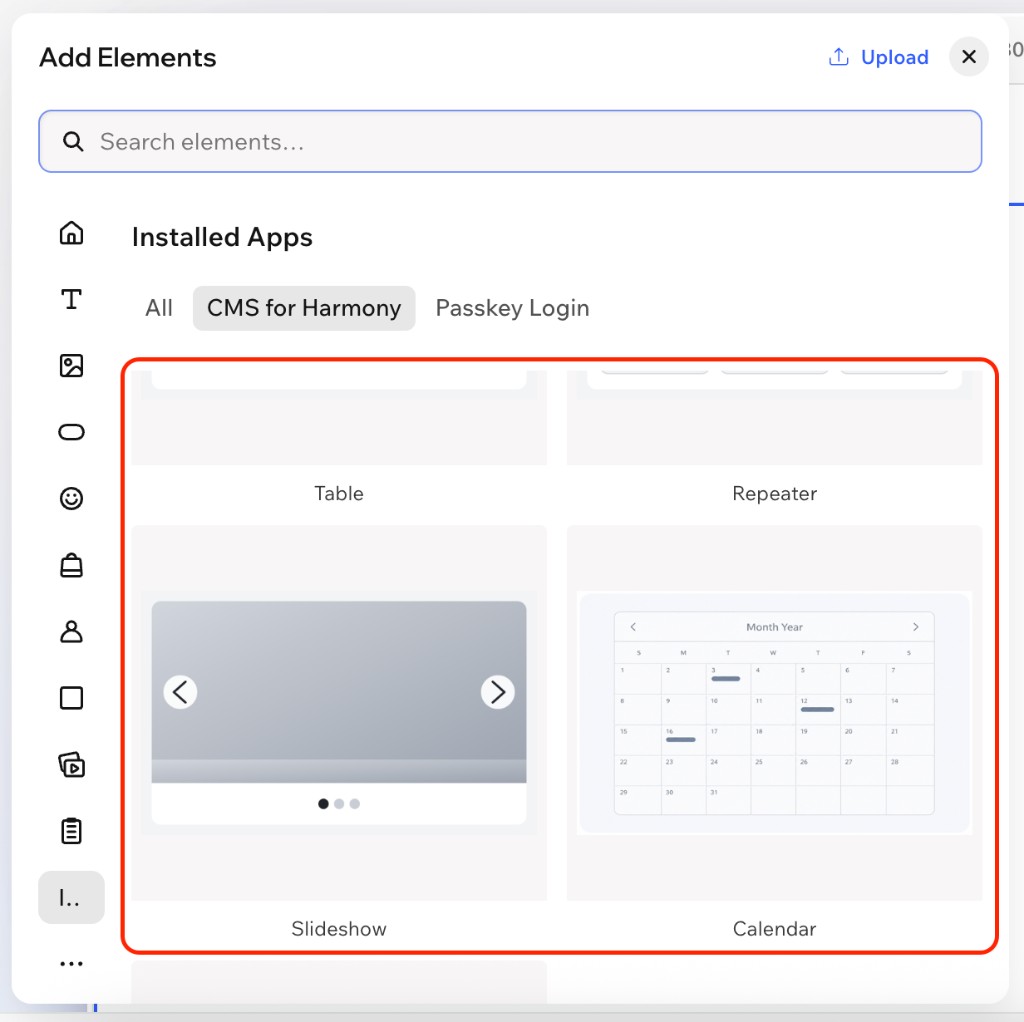
3. 拖曳 CMS for Harmony 小工具
- 在 Installed Apps 選擇 CMS for Harmony 分頁(或篩選)。
- 將任一小工具拖到頁面 — 例如 Table、Repeater、Slideshow、Media Gallery、Calendar 或 Form。
- 選取小工具並開啟 Settings,以連接集合並設定。
多次新增同一個小工具
需要另一個實例時,可再次拖曳同一個小工具。每個複本彼此獨立 — 可用不同集合、欄位、篩選或版面。
Dynamic Page
Dynamic Page 以相同方式新增,並放在 Wix 原生集合頁面(More actions → Add collection page)。詳情:Dynamic Page 與 如何設定 Dynamic Pages。
下一步
- 開始使用 — 安裝與第一次連接
- 新增集合 — 為欄位與權限建模
- 小工具指南:Table · Repeater · Slideshow · Media Gallery · Calendar · Form · Dynamic Page
- 選用:AI setup,用簡短描述設定小工具